B-Sense User Manual
This page is the fuller reference for the B-Sense Glucose Display after the Quick Start gets the first live reading on screen.
Use it when the device is already flashed and you want a clearer explanation of the setup screens and the on-device mini menu.
Documentation Menu
1. Device Controls
The current B-Sense hardware is based on the ESP32-32E-7789 board family.
For normal B-Sense use, the most important physical controls are:
BOOTRESET- the
USB Type-Cconnector
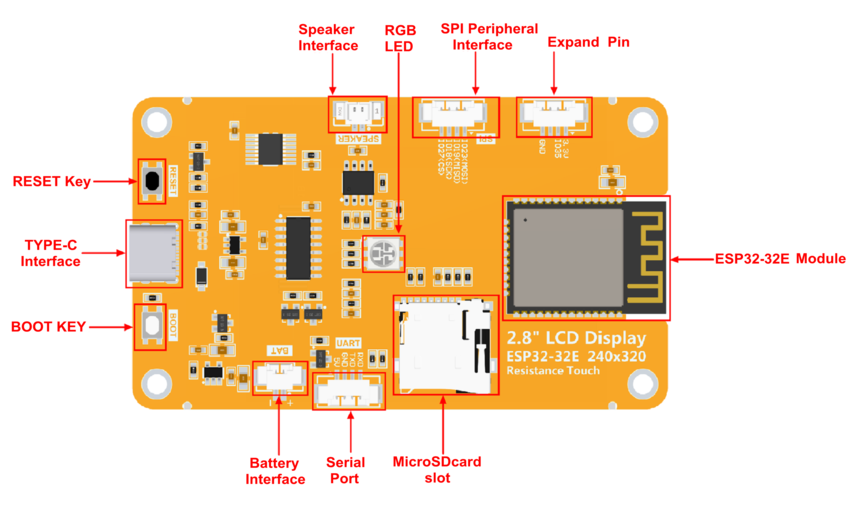
BOOT Button
The BOOT button is the main physical action button on the board.
Use it when:
- entering the on-device menu or setup flow
- forcing a manual interaction during recovery steps
- following a flashing or troubleshooting instruction that explicitly mentions
BOOT
RESET Button
The RESET button restarts the board immediately.
Use it when:
- the screen is stuck
- the device stops updating and you need a quick reboot
- a setup change needs a clean restart
USB Type-C Connector
The USB Type-C connector is used for:
- power
- firmware flashing
- direct connection to the Web Flasher workflow
If you want the full board documentation, connector list, and vendor reference drawings, see the original LCDWiki module page:
2. Web Setup Interface
The local web setup page is the main place to connect Wi-Fi, choose the data path, and check device status.
Use it in this order:
ConnectionSettingsPro FeaturesStatus
Recommended rule:
- finish the
Connectiontab first - wait for the first stable live reading
- only then tune layout, thresholds, and brightness
Connection Tab
Use this tab to:
- choose the Wi-Fi network
- enter the Wi-Fi password
- choose the data path
- enter the B-Sense Cloud or Nightscout access details
- save the configuration
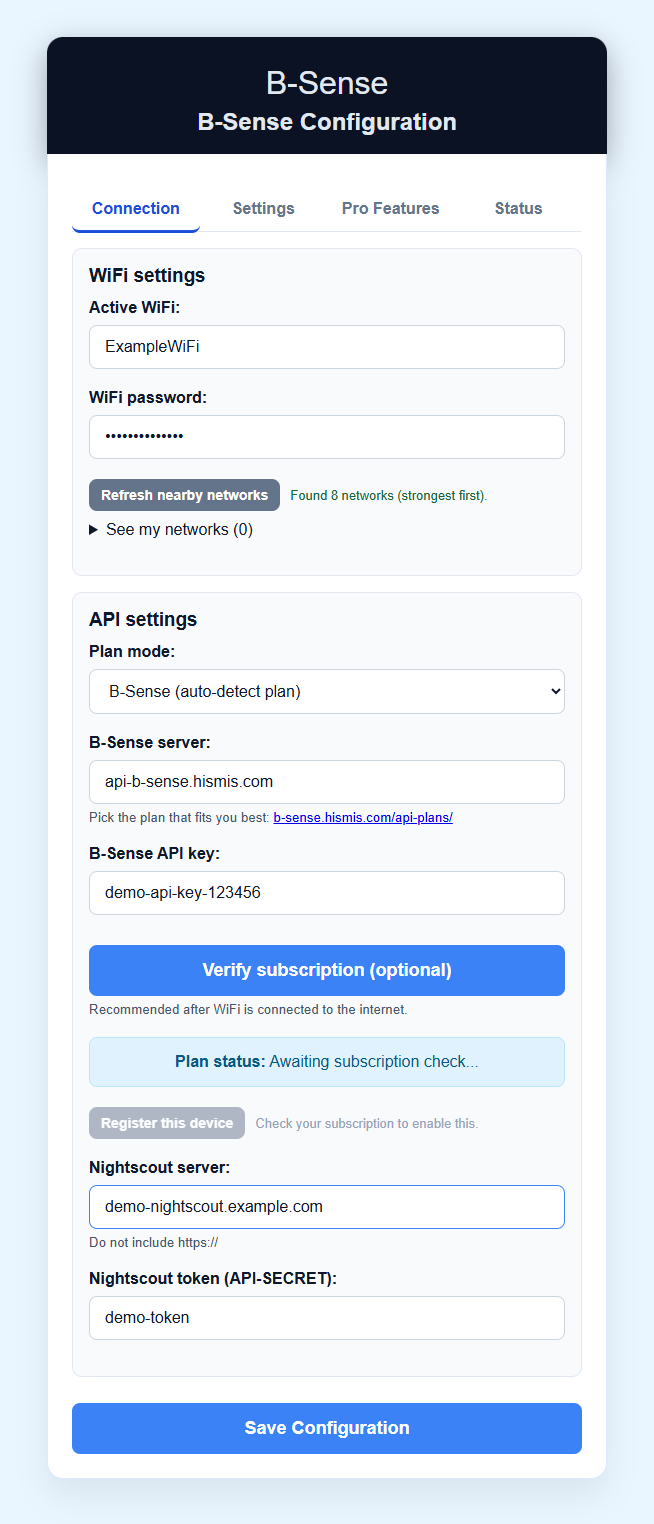
Practical rule:
- keep the first setup on one path only
- do not mix B-Sense Cloud and custom Nightscout values during the first setup
Settings Tab
Use this tab to:
- switch between
mmol/Landmg/dL - choose the time zone used by the device
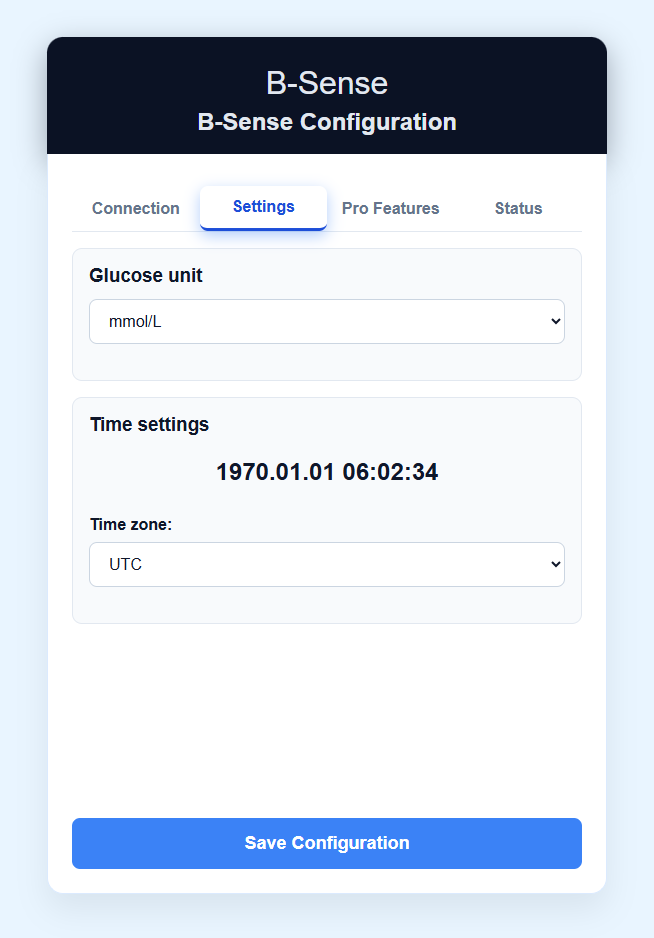
Note:
- if the device has not synced time from the network yet, the clock may show an incorrect date temporarily
Use Settings after the device already reaches the correct Wi-Fi network and the core data path is saved.
Good first check:
- if the displayed time is clearly wrong, fix Wi-Fi first and then confirm the time zone
- if the glucose number looks unfamiliar, confirm whether the device is currently set to
mmol/Lormg/dL
Pro Features Tab
Use this tab to:
- choose the display layout
- adjust glucose range thresholds
- tune the brightness schedule
- enable or disable the night-mode timing behavior
Pro Features is the current tab name in the local device web UI. In practice, this is the advanced display-tuning tab.
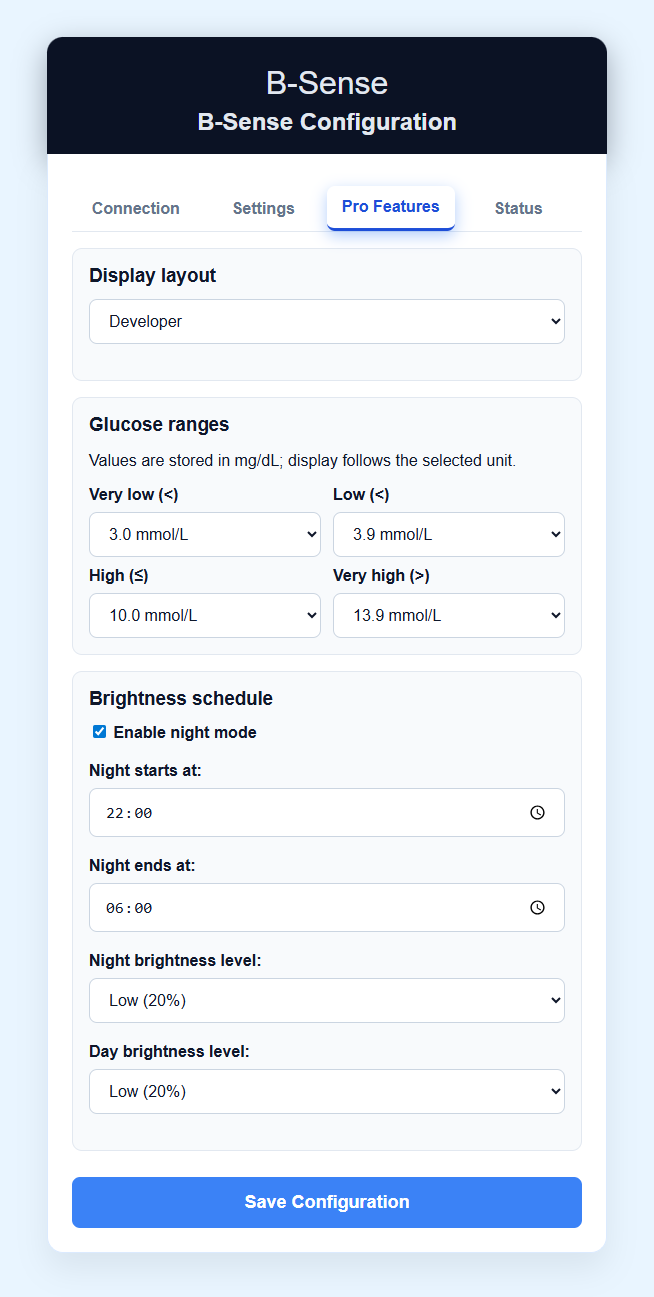
Do not start here on the first setup. This tab is for tuning after the base setup already works.
Use this tab after first success to tune:
- the screen layout you prefer for daily use
- the glucose thresholds that should look normal, low, or high for you
- the brightness behavior during day and night
Status Tab
Use this tab to:
- confirm the device firmware version
- confirm the device is configured
- check update availability
- restart the device if needed
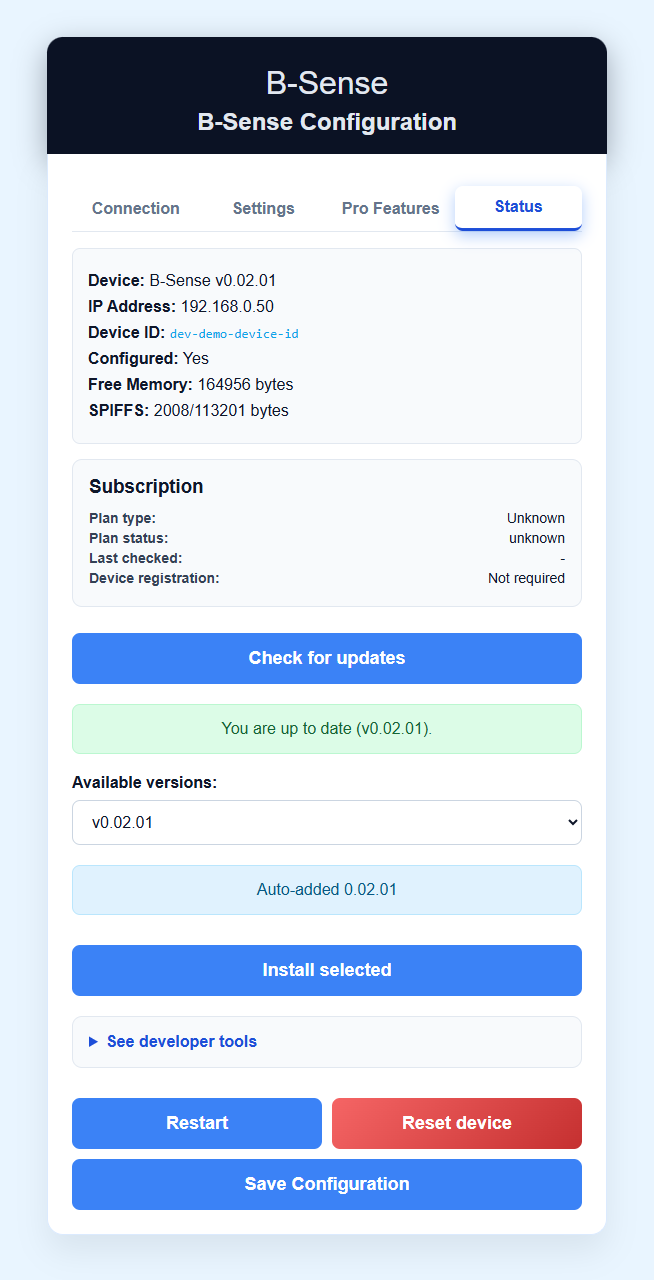
If you are diagnosing a problem, capture this page before changing multiple settings at once.
This is also the best place to check:
- whether the firmware version is the one you expect
- whether the device already looks fully configured
- whether an OTA check is worth trying or whether the device first needs stable Wi-Fi
3. Main Device Layouts
The public layouts are:
DefaultSimpleFocus
Representative examples:
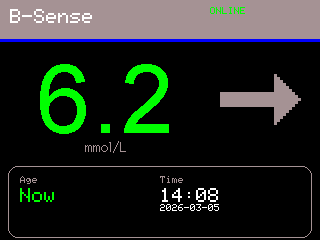
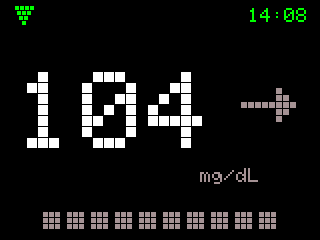
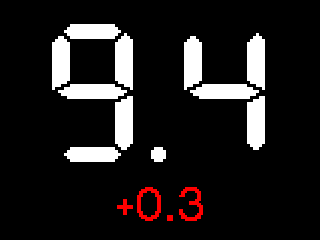
Practical difference:
Defaultshows a fuller at-a-glance balance of value, arrow, and statusSimpleputs the current value front and centerFocusis the most reduced view for quick visual reading
4. On-Device Mini Menu
The mini menu is for quick changes directly on the device without reopening the web UI.
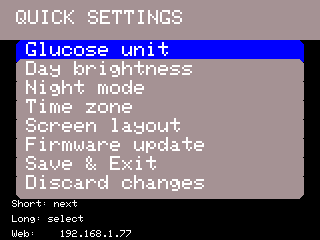
Current menu entries:
Glucose unitDay brightness(PRO)Night mode(PRO)Time zoneScreen layout(PRO)Firmware updateSave & ExitDiscard changes
Mini menu items available with Pro Features:
Day brightnessNight modeScreen layout
If your plan does not include Pro Features, those items stay locked and show a B-Sense subscription required message.
Glucose Unit
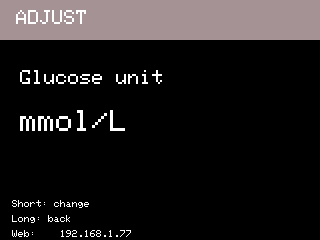
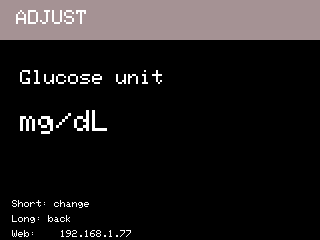
Use Glucose unit to switch between mmol/L and mg/dL.
Rule of use:
- change the unit here only if you want the device display to use a different unit
- keep your upstream app/cloud configuration consistent with the unit you expect to read
Day Brightness
PRO
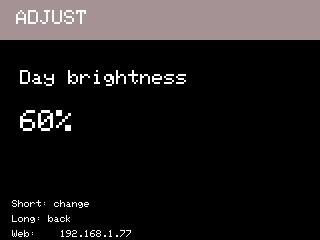
Use Day brightness if the screen is readable but you want it brighter or dimmer during normal use.
Practical rule:
- make small changes first
- check readability in the real room where you use the display
- if you are still in first setup, do this only after the data path is already stable
Night Mode
PRO
Use Night mode to reduce distraction during night hours.
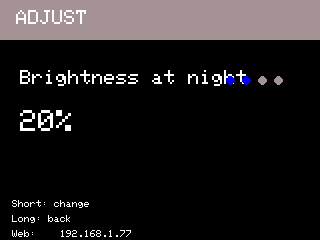
Practical rule:
- confirm the time zone first
- if night behavior looks wrong, fix the clock/time zone before changing brightness values again
Time Zone
Use Time zone when the clock or night-mode timing looks shifted.
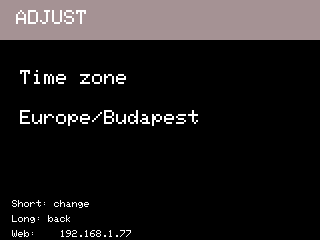
Practical rule:
- wrong time is often a Wi-Fi or sync issue first, not only a time-zone issue
- if the time still looks wrong after Wi-Fi is stable, then correct the time zone
Screen Layout
PRO
Use Screen layout to switch between the main layouts without reopening the web UI.
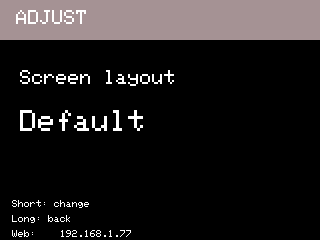
Important:
- without Pro Features, layout switching is locked
- In the free plan, the device has one standard layout only
- the extra layout switching options belong to the
PROpart of the system
Practical rule:
- use this for a quick visual comparison on the device
- if you are only previewing, use
Discard changeswhen leaving
Firmware Update
Use Firmware update only when the device is already stable on Wi-Fi.
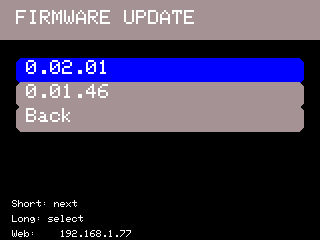
Practical rule:
- do not use OTA as the first recovery step for an unknown setup problem
- first confirm the device can fetch live data normally
- then check whether a newer listed version is actually needed
Save Or Discard
The mini menu works like this:
Save & Exitkeeps the changesDiscard changesreverts the runtime preview back to the last saved state
If you are only checking how a layout looks, use Discard changes before leaving.
What should happen when you save:
- the device keeps the selected unit, layout, and brightness-related changes
- the next normal screen refresh uses the saved state
- reopening the mini menu should show the same values you just kept
5. Recommended First Configuration Order
For the cleanest first setup:
- Install firmware with the Web Flasher.
- Connect Wi-Fi.
- Enter one data path only.
- Wait for the first live reading.
- Set the glucose unit.
- Adjust screen layout and brightness.
- Check OTA only after the device is already stable.
6. What To Capture Before Support
If you need help, capture these before changing too many things:
- board type
- current firmware version from the
Statustab - whether Wi-Fi is connected
- which path you selected: Nightscout or B-Sense Cloud
- whether the device ever showed one successful reading
- current glucose unit
- a screenshot or photo of the current display state
7. If Something Looks Wrong
Use these pages next: